<?xml version="1.0" encoding="utf-8"?><feed xmlns="http://www.w3.org/2005/Atom" ><generator uri="https://jekyllrb.com/" version="3.10.0">Jekyll</generator><link href="https://petertengg.com/feed/Programming.xml" rel="self" type="application/atom+xml" /><link href="https://petertengg.com/" rel="alternate" type="text/html" /><updated>2025-12-05T06:21:44+00:00</updated><id>https://petertengg.com/feed/Programming.xml</id><title type="html">Péter Tengg | Programming</title><subtitle>A personal site by Péter Tengg — exploring creative programming, algorithmic trading, and technical projects.  Follow along for insights, experiments, and portfolio updates.</subtitle><author><name>Péter</name></author><entry><title type="html">How I Built My Personal Site with Jekyll and Minimal Mistakes - Part 3: Publishing Takeaways and Final Thoughts</title><link href="https://petertengg.com/programming/2025-08-12-how-i-built-my-personal-site-with-jekyll-and-minimal-mistakes-part-3/" rel="alternate" type="text/html" title="How I Built My Personal Site with Jekyll and Minimal Mistakes - Part 3: Publishing Takeaways and Final Thoughts" /><published>2025-08-12T11:00:00+00:00</published><updated>2025-08-12T11:00:00+00:00</updated><id>https://petertengg.com/programming/how-i-built-my-personal-site-with-jekyll-and-minimal-mistakes-part-3</id><content type="html" xml:base="https://petertengg.com/programming/2025-08-12-how-i-built-my-personal-site-with-jekyll-and-minimal-mistakes-part-3/"><![CDATA[<p class="notice"><em>Edit 2025-08-28</em>: This three-part series describes the original design of my site, which has since changed. However, the techniques and features 
presented remain useful for Jekyll development, so I’m keeping it here for future reference.</p>

<h2 id="introduction">Introduction</h2>

<p>This is the third and final part of a three-post series, where I sum up the journey of building my website. If you haven’t, make sure to read <a href="/programming/2025-07-29-how-i-built-my-personal-site-with-jekyll-and-minimal-mistakes-part-1">Part 1: Setup and Design Decisions</a> and <a href="/programming/2025-08-05-how-i-built-my-personal-site-with-jekyll-and-minimal-mistakes-part-2">Part 2: Custom Implementation and Plugins</a>. In this part, the site will finally go live! I will share a useful checklist for pre- and post-publishing, based on my experiences, and we will conclude the series with my final thoughts.</p>

<h2 id="publishing">Publishing</h2>

<p>At this point, I have implemented what I planned for a minimum viable product (MVP). I have also created one initial post in each of my sub-blogs, so my site was ready to go public.</p>

<h3 id="gh-pages-deploy-branch">gh-pages deploy branch</h3>

<p>Since I <a href="/programming/2025-07-29-how-i-built-my-personal-site-with-jekyll-and-minimal-mistakes-part-1#quote-gh-pages">cannot use GHP</a> directly to build my site, I have to build it locally, and push it to a separate branch. I set it up this way.</p>

<h4 id="1-create-an-orphan-branch-called-gh-pages">1. Create an orphan branch called <code class="language-plaintext highlighter-rouge">gh-pages</code>.</h4>

<div class="language-bash highlighter-rouge"><div class="highlight"><pre class="highlight"><code>git checkout <span class="nt">--orphan</span> gh-pages
git <span class="nb">rm</span> <span class="nt">-rf</span> <span class="nb">.</span>   <span class="c"># Clean working directory</span>
<span class="nb">echo</span> <span class="s2">"My site is published here"</span> <span class="o">&gt;</span> index.html
git add index.html
git commit <span class="nt">-m</span> <span class="s2">"Initial gh-pages commit"</span>
git push origin gh-pages
git checkout main  <span class="c"># Go back to your main branch</span>
</code></pre></div></div>

<p>An <code class="language-plaintext highlighter-rouge">orphan branch</code> means that it has no commit history when created. It is like starting a brand new repository inside the existing one. It is useful, because the <code class="language-plaintext highlighter-rouge">gh-pages</code> deployment branch will contain the built site and needs nothing else from the <code class="language-plaintext highlighter-rouge">main</code> branch. That’s why the second command cleans the working directory to prevent adding all the existing files to gh-pages.</p>

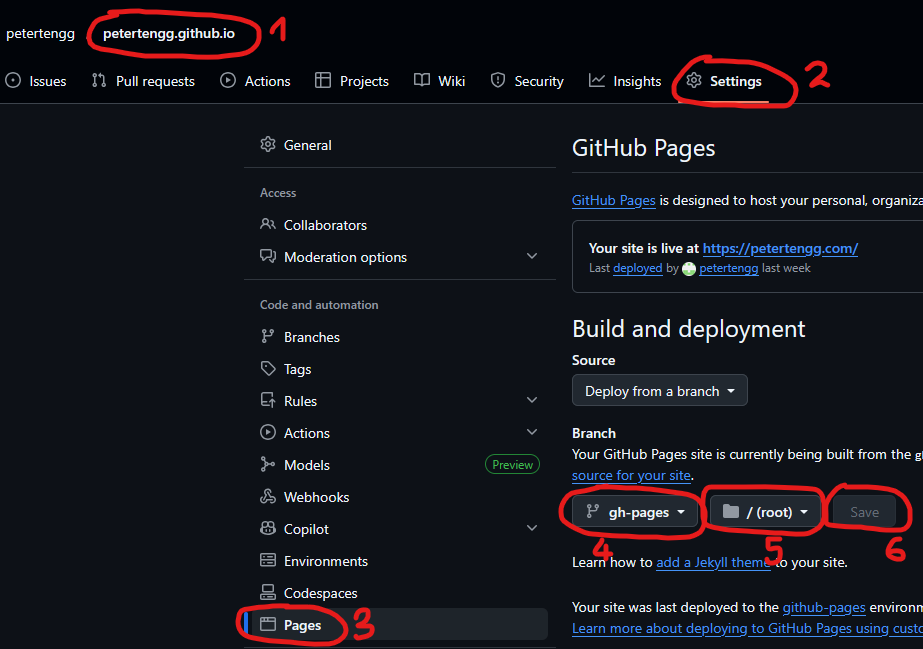
<h4 id="2-set-github-pages-to-use-the-gh-pages-branch">2. Set GitHub Pages to use the <code class="language-plaintext highlighter-rouge">gh-pages</code> branch</h4>

<p class="text-center"><img src="/assets/images/programming/building-my-personal-site-with-jekyll-and-minimal-mistakes/1.png" alt="Setting up GitHub Pages to use deploy branch" /></p>

<ul>
  <li>Go to your repo on <code class="language-plaintext highlighter-rouge">GitHub -&gt; Settings -&gt; Pages</code></li>
  <li>Source: Select <code class="language-plaintext highlighter-rouge">gh-pages</code> branch, <code class="language-plaintext highlighter-rouge">/(root)</code></li>
  <li>Save.</li>
</ul>

<h4 id="3-publishing-the-website-these-are-the-steps-you-need-to-carry-out-every-time-you-want-to-publish">3. Publishing the website. These are the steps you need to carry out every time you want to publish.</h4>

<div class="li-second-level">
  <p>3.1. Build your site locally.</p>
  <div class="language-bash highlighter-rouge"><div class="highlight"><pre class="highlight"><code>  bundle <span class="nb">exec </span>jekyll build
</code></pre></div>  </div>
  <p>This will generate the site under the <code class="language-plaintext highlighter-rouge">_site</code> folder.</p>
</div>
<div class="li-second-level">
  <p>3.2. Copy <code class="language-plaintext highlighter-rouge">_site</code> contents to <code class="language-plaintext highlighter-rouge">gh-pages</code> branch</p>
  <div class="language-bash highlighter-rouge"><div class="highlight"><pre class="highlight"><code>  git worktree add ../_deploy gh-pages
</code></pre></div>  </div>
  <p>This has to be done only once at the initial setup. It is a subdirectory clone trick. <code class="language-plaintext highlighter-rouge">_deploy</code> won’t be physically inside your working folder, but will be a sibling to it, keeping <code class="language-plaintext highlighter-rouge">gh-pages</code> in a separate working tree at <code class="language-plaintext highlighter-rouge">../_deploy</code>, which avoids messy branch switching.</p>
</div>
<div class="li-second-level">
  <p>3.3. Then:</p>
  <div class="language-bash highlighter-rouge"><div class="highlight"><pre class="highlight"><code><span class="nb">rm</span> <span class="nt">-rf</span> ../_deploy/<span class="k">*</span>
<span class="nb">cp</span> <span class="nt">-r</span> _site/<span class="k">*</span> ../_deploy/
<span class="nb">cd</span> ../_deploy
git add <span class="nb">.</span>
git commit <span class="nt">-m</span> <span class="s2">"Publish site"</span>
git push origin gh-pages
<span class="nb">cd</span> -
</code></pre></div>  </div>
  <p>That’s it. Your site is now pushed to the deploy branch on your GitHub repo. If all went well, GitHub Pages should begin building your site automatically and soon it will be publicly available under <code class="language-plaintext highlighter-rouge">{your_repo_name}.github.io</code>. In my case <code class="language-plaintext highlighter-rouge">petertengg.github.io</code>.</p>
</div>
<div class="li-second-level">
  <p>3.4. Finally, if it works, you can put these steps together into a reusable deploy script. This is optional, but I love automating, so here is the script I use:</p>

  <div class="language-bash highlighter-rouge"><div class="highlight"><pre class="highlight"><code><span class="c"># Set Jekyll to production environment</span>
<span class="nv">JEKYLL_ENV</span><span class="o">=</span>production bundle <span class="nb">exec </span>jekyll build

<span class="c"># Continue deployment steps</span>
<span class="nb">rm</span> <span class="nt">-rf</span> ../_deploy/<span class="k">*</span>
<span class="nb">cp</span> <span class="nt">-r</span> _site/<span class="k">*</span> ../_deploy/
<span class="nb">cd</span> ../_deploy
git add <span class="nb">.</span>
git commit <span class="nt">-m</span> <span class="s2">"Publish site"</span>
git push origin gh-pages
<span class="nb">cd</span> -
</code></pre></div>  </div>
  <p>I set <code class="language-plaintext highlighter-rouge">JEKYLL_ENV=production</code>, because it is needed for the comment section to be displayed by <a href="https://mmistakes.github.io/minimal-mistakes/docs/configuration/#comments" target="_blank" rel="nofollow noopener noreferrer">Minimal Mistakes</a>.</p>

  <p>Whenever I publish my site, I just run:</p>
  <div class="language-bash highlighter-rouge"><div class="highlight"><pre class="highlight"><code>./deploy.sh
</code></pre></div>  </div>
</div>

<h3 id="publishing-experiences-and-checklist">Publishing experiences and checklist</h3>

<p>In this section, I will sum up my experiences launching my site. In general, it went quite smoothly without major issues (not that the risk was very high :P), but I want to remember some takeaways for the next time.</p>

<h4 id="key-takeaways">Key takeaways</h4>
<ul>
  <li>It was a good idea to do a “soft” launch one day before the “official” launch.
    <ul>
      <li>“soft” launch: I shared the link with my friends and family asking for feedback. This caught smaller issues and got some improvement ideas for the future.</li>
      <li>“official” launch: one day later I announced my site on LinkedIn and Instagram</li>
    </ul>
  </li>
</ul>

<h4 id="checkliststeps-to-do-when-publishing">Checklist/steps to do when publishing</h4>

<p>1. Build with <code class="language-plaintext highlighter-rouge">JEKYLL_ENV=production</code> and run locally (http://127.0.0.1:4000/)</p>

<div class="li-second-level">
  <p>1.1. Check desktop version in a browser.</p>

</div>

<div class="li-third-level">
  <p>1.1.1. If you have renamed any file, check for broken links</p>

</div>

<div class="li-third-level">
  <p>1.1.2. Click all new links on new pages/posts</p>

</div>

<div class="li-second-level">
  <p>1.2. Check how it looks in the mobile version (in Chrome: <code class="language-plaintext highlighter-rouge">F12 -&gt; Toggle Device Toolbar (or Ctrl + Shift + M)</code>)</p>

</div>

<p>2. Publish</p>
<div class="li-second-level">
  <p>2.1. Check live site on desktop.</p>

</div>

<div class="li-second-level">
  <p>2.2. Check live site on an actual mobile device.</p>

</div>

<div class="li-second-level">
  <p>2.3. <em>Optional</em>: ask feedback from friends.</p>

</div>

<div class="li-second-level">
  <p>2.4. <em>Optional</em>: announce new content on social media.</p>

</div>

<div class="li-third-level">
  <p>2.4.1. Start with your least important audience/platform.</p>

</div>

<div class="li-third-level">
  <p>2.4.2. Finish with the most important target audience.</p>

</div>

<h2 id="after-publishing">After publishing</h2>

<p>After my site has gone live, I have set up a couple of more things.</p>
<ol>
  <li>I bought my <code class="language-plaintext highlighter-rouge">domain</code> and set it up in GitHub Pages. Now my site is available at <a href="https://petertengg.com/">https://petertengg.com/</a></li>
  <li><code class="language-plaintext highlighter-rouge">Google Search Console</code>: helps monitor how your site appears in Google Search and fix indexing or SEO issues.</li>
  <li><code class="language-plaintext highlighter-rouge">Google Analytics</code>: tracks and reports website traffic, showing how visitors interact with your site.</li>
</ol>

<p>I mention them here just for the sake of completeness, but the details are out of the scope of this (already quite long) blog post. If you want me to cover them, let me know and I will be happy to do so.</p>

<h2 id="conclusion">Conclusion</h2>

<p>I feel I have managed to set up a good framework for my further blogging endeavours. It was a relatively big initial investment, but it was totally worth it. I am really satisfied and proud of the result. I got to learn a lot about <code class="language-plaintext highlighter-rouge">GitHub Pages</code>, <code class="language-plaintext highlighter-rouge">Jekyll</code> and <code class="language-plaintext highlighter-rouge">Minimal Mistakes</code>. In hindsight, I am happy to have chosen this path and would do the same if I had to start over. The learning curve of this stack is relatively easy, I had a lot of fun building my site, and the result is satisfying. I also have the feeling that I haven’t reached the limits of this framework, it still offers plenty of room for future improvements. For now, however, I want to enjoy my site and focus on writing posts and publishing content.</p>

<p>Before this, I had very limited experience with web development, and it wasn’t exactly positive either. <code class="language-plaintext highlighter-rouge">Jekyll</code> may have been the gateway drug for me to web development. Who knows, maybe next time I will get into dynamic site development as well. But for now, I want to focus on my core areas: C++, (performance) optimisations and trading.</p>

<p>Before dropping the pen, I want to give a shoutout to <code class="language-plaintext highlighter-rouge">Minimal Mistakes</code> and its creator <a href="https://mademistakes.com" target="_blank" rel="nofollow noopener noreferrer">Michael Rose</a>. MM proved to be a good choice, even though I don’t have much experience with other themes. Great experience, very well documented, flexible and a lot of fun to work with. Very happy with the outcome.</p>

<h2 id="links">Links</h2>
<ul>
  <li><a href="/programming/2025-07-29-how-i-built-my-personal-site-with-jekyll-and-minimal-mistakes-part-1">Part 1: Setup and Design Decisions</a></li>
  <li><a href="/programming/2025-08-05-how-i-built-my-personal-site-with-jekyll-and-minimal-mistakes-part-2">Part 2: Custom Implementation and Plugins</a></li>
  <li><a href="/portfolio/2025-07-29-my-personal-site">Portfolio entry</a></li>
  <li><a href="https://github.com/petertengg/petertengg.github.io" target="_blank" rel="nofollow noopener noreferrer">GitHub repo</a></li>
</ul>

<h2 id="sources">Sources</h2>
<ul>
  <li><a href="https://mmistakes.github.io/minimal-mistakes/" target="_blank" rel="nofollow noopener noreferrer">Minimal Mistakes documentation and demo site</a></li>
</ul>]]></content><author><name>Péter</name></author><category term="Programming" /><category term="Jekyll" /><category term="Web Development" /><category term="Minimal Mistakes" /><category term="Jekyll" /><category term="Ruby" /><category term="Git" /><category term="Github Pages" /><summary type="html"><![CDATA[In this part, the site will finally go live! I will share a useful checklist for pre- and post-publishing, based on my experiences, and we will conclude the series with my final thoughts.]]></summary></entry><entry><title type="html">How I Built My Personal Site with Jekyll and Minimal Mistakes - Part 2: Custom Implementation and Plugins</title><link href="https://petertengg.com/programming/2025-08-05-how-i-built-my-personal-site-with-jekyll-and-minimal-mistakes-part-2/" rel="alternate" type="text/html" title="How I Built My Personal Site with Jekyll and Minimal Mistakes - Part 2: Custom Implementation and Plugins" /><published>2025-08-05T05:20:00+00:00</published><updated>2025-08-05T05:20:00+00:00</updated><id>https://petertengg.com/programming/how-i-built-my-personal-site-with-jekyll-and-minimal-mistakes-part-2</id><content type="html" xml:base="https://petertengg.com/programming/2025-08-05-how-i-built-my-personal-site-with-jekyll-and-minimal-mistakes-part-2/"><![CDATA[<p class="notice"><em>Edit 2025-08-28</em>: This three-part series describes the original design of my site, which has since changed. However, the techniques and features 
presented remain useful for Jekyll development, so I’m keeping it here for future reference.</p>

<h2 id="introduction">Introduction</h2>

<p>This is Part 2 in a three-post series, where I sum up the journey of building my website. If you haven’t, make sure to read <a href="/programming/2025-07-29-how-i-built-my-personal-site-with-jekyll-and-minimal-mistakes-part-1">Part 1: Setup and Design Decisions</a>. In this part, I continue with the implementation process. I will show how the amusingly named <code class="language-plaintext highlighter-rouge">monkey patching</code> helped me overcome another technical challenge, and we’ll explore how to customise a Jekyll theme to your liking.</p>

<h2>The implementation process (<a href="/programming/2025-07-29-how-i-built-my-personal-site-with-jekyll-and-minimal-mistakes-part-1#the-implementation-process">continues Part 1</a>)</h2>

<p>Since I wasn’t familiar with the Jekyll framework, I explored its capabilities and limitations along the way. The road was a bit bumpy, but it wasn’t too steep, and the process was quite enjoyable.</p>

<h3 id="related-posts---monkey-patching-ruby">Related posts - monkey patching (Ruby)</h3>

<p>Another limitation of Jekyll’s default behaviour is that it only suggests related posts from the <code class="language-plaintext highlighter-rouge">Posts</code> collection which I don’t even use. I had to override it to include all my collections. Here, I took a different approach from the <a href="/programming/2025-07-29-how-i-built-my-personal-site-with-jekyll-and-minimal-mistakes-part-1#all-taxonomies-plugin-code">AllTaxonomiesPlugin</a>, because that one creates new collections that don’t exist in Jekyll, but here I wanted to modify Jekyll’s existing behaviour. It uses <code class="language-plaintext highlighter-rouge">Classifier Reborn</code> to calculate similarities between posts based on content, not just categories and tags. I wanted to keep that, so I used Ruby’s so called <code class="language-plaintext highlighter-rouge">monkey patching</code> technique which allows you to overwrite existing code, without modifying Jekyll’s internal code. (When I first heard <code class="language-plaintext highlighter-rouge">monkey patching</code>, I thought it was a joke). The key part of <code class="language-plaintext highlighter-rouge">related_posts_patch.rb</code> is this:</p>

<div class="language-ruby highlighter-rouge"><div class="highlight"><pre class="highlight"><code><span class="k">module</span> <span class="nn">Jekyll</span>
  <span class="k">class</span> <span class="nc">RelatedPosts</span>
    <span class="o">...</span>
    <span class="k">def</span> <span class="nf">all_docs</span>
      <span class="vi">@all_docs</span> <span class="o">||=</span> <span class="k">begin</span>
        <span class="n">collections</span> <span class="o">=</span> <span class="sx">%w(updates programming cooking portfolio)</span>
        <span class="n">collections</span><span class="p">.</span><span class="nf">flat_map</span> <span class="p">{</span> <span class="o">|</span><span class="n">c</span><span class="o">|</span> <span class="n">site</span><span class="p">.</span><span class="nf">collections</span><span class="p">[</span><span class="n">c</span><span class="p">]</span><span class="o">&amp;</span><span class="p">.</span><span class="nf">docs</span> <span class="o">||</span> <span class="p">[]</span> <span class="p">}</span>
      <span class="k">end</span>
    <span class="k">end</span>
  <span class="k">end</span>
<span class="k">end</span>
</code></pre></div></div>

<p><code class="language-plaintext highlighter-rouge">all_docs</code> returns all documents across all my collections, and replaces the original <code class="language-plaintext highlighter-rouge">site.posts.docs</code> in the code. The rest of the logic is intact.</p>

<h2 id="overriding-and-customising-jekyll-themes">Overriding and customising Jekyll themes</h2>

<p>In the previous chapter, I introduced <code class="language-plaintext highlighter-rouge">Jekyll plugins</code> and <code class="language-plaintext highlighter-rouge">monkey patching</code> as two means of overriding Jekyll’s default behaviour in Ruby code. These are powerful but relatively advanced techniques, best suited for users comfortable with code. However, these are not the only tools available. In this chapter I will show you through examples what else I used. While Ruby coding modifies the behaviour of Jekyll itself, the following techniques allow you to tailor the Jekyll theme you are using (in my case, Minimal Mistakes)</p>

<h3 id="replacing-files">Replacing files</h3>

<p>The most direct way to override some part of a Jekyll theme is by replacing some of its files directly. You do this by placing a file with the same name, under the same path as in the theme. Jekyll will use your file instead of the one defined in the theme. You do not need to change anything in the original theme. For example:</p>

<p>1. <code class="language-plaintext highlighter-rouge">_includes/documents-collection.html</code>: The difference between the two files:</p>

<div class="language-liquid highlighter-rouge"><div class="highlight"><pre class="highlight"><code>-  <span class="p">{%</span><span class="w"> </span><span class="nt">include</span><span class="w"> </span>archive-single.html<span class="w"> </span><span class="na">type</span><span class="o">=</span>include.type<span class="w"> </span><span class="p">%}</span>
+  <span class="p">{%</span><span class="w"> </span><span class="nt">include</span><span class="w"> </span><span class="p">{{</span><span class="w"> </span><span class="nv">include</span><span class="p">.</span><span class="nv">included_archive_layout</span><span class="w"> </span><span class="p">|</span><span class="w"> </span><span class="nf">default</span><span class="p">:</span><span class="w"> </span><span class="s2">"archive-single"</span><span class="w"> </span><span class="p">}}.</span><span class="nv">html</span><span class="w"> </span><span class="na">type</span><span class="o">=</span>include.type<span class="w"> </span><span class="p">%}</span>
</code></pre></div></div>

<p>Remember, I did not edit Minimal Mistakes’ file, I just overrode it with mine. I added an optional parameter <code class="language-plaintext highlighter-rouge">included_archive_layout</code> to the include file, because from <code class="language-plaintext highlighter-rouge">_layouts/updates.html</code> I want to use a modified version of <code class="language-plaintext highlighter-rouge">archive-single</code>: <code class="language-plaintext highlighter-rouge">archive-update</code>, which also shows the associated categories under each post. This is important because my updates layout shows posts from every collection on the site.</p>

<p>2. <code class="language-plaintext highlighter-rouge">_includes/footer.html</code>: Modified the footer to</p>
<ul>
  <li>include a download link of my CV</li>
  <li>instead of opening the atom feed (of the Post collection) directly. It opens a page with separate feeds for all my collections</li>
</ul>

<p>One potential drawback of this technique is that if the original file in Minimal Mistakes is updated, your override won’t automatically reflect those changes, which might or might not be an issue, depending on your needs. You most likely won’t even notice, if you don’t check it yourself after a Minimal Mistakes update. This is not the case with the next technique:</p>

<h3 id="including-files-and-extending-them">Including files and extending them</h3>

<p>Here, you don’t replace the original Minimal Mistakes (MM from now on — for Pete’s sake, I’ve typed it enough times!) files, but extend them through inclusion. It works best for layout files, and if the original layout gets updated in a newer MM version, your page will get the update automatically (which can be an advantage or disadvantage as well). An example of this is <code class="language-plaintext highlighter-rouge">_layout/collection-extended.html</code> which reuses MM’s collection layout, but adds a subtitle. For example, the main title is <code class="language-plaintext highlighter-rouge">Bugs in the Soup</code> and the subtitle is <code class="language-plaintext highlighter-rouge">Programming</code>:</p>

<div class="language-markdown highlighter-rouge"><div class="highlight"><pre class="highlight"><code><span class="nn">---</span>
<span class="na">layout</span><span class="pi">:</span> <span class="s">collection</span>
<span class="nn">---</span>

{{ page.subtitle }}
{{ content }}
</code></pre></div></div>

<p>Here, content will be replaced by the original content generated by MM’s collection layout, preceded by the page’s subtitle.</p>

<h3 id="_includesheadcustomhtml">_includes/head/custom.html</h3>

<p>This is a special case of <a href="#replacing-files">Replacing files</a>, but it is a bit different. It deserves mentioning separately because this is by design in Minimal Mistakes. In the MM theme, <code class="language-plaintext highlighter-rouge">_includes/head/custom.html</code> is an existing, empty file, containing only a couple of comments, and it is actually included in MM’s <code class="language-plaintext highlighter-rouge">default.html</code>, which is the root file of the whole layout hierarchy. It includes <code class="language-plaintext highlighter-rouge">custom.html</code> in the <code class="language-plaintext highlighter-rouge">&lt;head&gt;</code> part:</p>

<div class="language-liquid highlighter-rouge"><div class="highlight"><pre class="highlight"><code>  &lt;head&gt;
    <span class="p">{%</span><span class="w"> </span><span class="nt">include</span><span class="w"> </span>head.html<span class="w"> </span><span class="p">%}</span>
    <span class="p">{%</span><span class="w"> </span><span class="nt">include</span><span class="w"> </span>head/custom.html<span class="w"> </span><span class="p">%}</span>
  &lt;/head&gt;
</code></pre></div></div>

<p>This means it will be included in every page on your site, and it provides extensibility. I used it to include my <code class="language-plaintext highlighter-rouge">custom.css</code> file and my <code class="language-plaintext highlighter-rouge">favicon</code> which Jekyll wouldn’t otherwise include during the build process:</p>

<div class="language-html highlighter-rouge"><div class="highlight"><pre class="highlight"><code><span class="nt">&lt;link</span> <span class="na">rel=</span><span class="s">"stylesheet"</span> <span class="na">href=</span><span class="s">"{{ '/assets/css/custom.css' | relative_url }}"</span><span class="nt">&gt;</span>
<span class="nt">&lt;link</span> <span class="na">rel=</span><span class="s">"shortcut icon"</span> <span class="na">type=</span><span class="s">"image/x-icon"</span> <span class="na">href=</span><span class="s">"{{ site.baseurl }}/assets/images/favicon.ico"</span><span class="nt">&gt;</span>
</code></pre></div></div>

<p>Similarly, there is a corresponding <code class="language-plaintext highlighter-rouge">_includes/footer/custom.html</code> file for the footer, which I didn’t use, but the possibility is there, should you need it.</p>

<h2 id="third-party-plugins">Third party plugins</h2>

<p>In this section, I will discuss third party plugins that I used to further enhance the functionality of my site.</p>

<h3 id="jekyll-feed">jekyll-feed</h3>

<p>Installed as a Ruby gem, it performs the generation of feeds based on your site content. It is <a href="https://pages.github.com/versions/" target="_blank" rel="nofollow noopener noreferrer">supported</a> by GitHub Pages (GHP), so you can use it even if you rely on GHP to build your site. After having struggled so much with the Posts vs. custom collections support by Jekyll (<a href="/programming/2025-07-29-how-i-built-my-personal-site-with-jekyll-and-minimal-mistakes-part-1#categories-and-tags-aka-taxonomies">taxonomies</a> and <a href="#related-posts---monkey-patching-ruby">related posts</a>), it was a pleasant surprise that <code class="language-plaintext highlighter-rouge">jekyll-feed</code> is pretty configurable (<a href="https://github.com/jekyll/jekyll-feed#jekyll-feed-plugin" target="_blank" rel="nofollow noopener noreferrer">see more</a>) and is happy to recognise other collections beyond the almighty <code class="language-plaintext highlighter-rouge">Posts</code>. All I had to do in my <code class="language-plaintext highlighter-rouge">_config.yaml</code> is:</p>
<div class="language-yaml highlighter-rouge"><div class="highlight"><pre class="highlight"><code><span class="na">plugins</span><span class="pi">:</span>
  <span class="pi">-</span> <span class="s">jekyll-feed</span>
<span class="nn">...</span>
<span class="na">feed</span><span class="pi">:</span>
  <span class="na">collections</span><span class="pi">:</span>
    <span class="pi">-</span> <span class="s">updates</span>
    <span class="pi">-</span> <span class="s">programming</span>
    <span class="pi">-</span> <span class="s">cooking</span>
    <span class="pi">-</span> <span class="s">portfolio</span>
</code></pre></div></div>
<p>The generated feeds are then output to the <code class="language-plaintext highlighter-rouge">_site/feed/{collection}.xml</code> files.</p>

<h3 id="jekyll-seo-tag">jekyll-seo-tag</h3>

<p><code class="language-plaintext highlighter-rouge">jekyll-seo-tag</code> is also a low hanging fruit for a newly launched site. It is installed as a Ruby gem and is also supported by GHP. The configuration effort is minimal, and it adds  <a href="https://github.com/jekyll/jekyll-seo-tag?tab=readme-ov-file#about-jekyll-seo-tag" target="_blank" rel="nofollow noopener noreferrer">meta tags</a> to your site. All you need to do is</p>

<p>1. Install it as a Ruby gem.</p>

<div class="language-plaintext highlighter-rouge"><div class="highlight"><pre class="highlight"><code>group :jekyll_plugins do
...
  gem "jekyll-seo-tag", "~&gt; 2.8.0"
...
end
</code></pre></div></div>

<p>2. Add it to your <code class="language-plaintext highlighter-rouge">_config.yaml</code>:</p>
<div class="language-yaml highlighter-rouge"><div class="highlight"><pre class="highlight"><code><span class="na">plugins</span><span class="pi">:</span>
<span class="nn">...</span>
  <span class="pi">-</span> <span class="s">jekyll-seo-tag</span>
</code></pre></div></div>
<p>3. Include it in the aforementioned <a href="#_includesheadcustomhtml">_includes/head/custom.html</a></p>

<div class="language-html highlighter-rouge"><div class="highlight"><pre class="highlight"><code><span class="c">&lt;!-- start custom head snippets --&gt;</span>
...
{% seo %}
<span class="c">&lt;!-- end custom head snippets --&gt;</span>
</code></pre></div></div>

<h3 id="disqus">Disqus</h3>

<p>Disqus is a comment provider which lets readers comment and discuss under posts. It is even more third party than the two Jekyll plugins above, I could even call it fourth party. Why did I choose it then among all the <a href="https://mmistakes.github.io/minimal-mistakes/docs/configuration/#comments" target="_blank" rel="nofollow noopener noreferrer">supported comment providers</a> by MM? During my research, this is what I found:</p>
<ol>
  <li><code class="language-plaintext highlighter-rouge">giscus</code> and <code class="language-plaintext highlighter-rouge">utterances</code>
    <ul>
      <li>Pros: they leverage GitHub’s infrastructure, which would make them well suited for my site, however…</li>
      <li>Cons: they require a GitHub account for the reader to comment. Since my target audience does not only consist of developers, but also traders and hobby cooks, they were out of the equation.</li>
    </ul>
  </li>
  <li><code class="language-plaintext highlighter-rouge">Facebook</code>:
    <ul>
      <li>Pros: big, battle tested, most people have FB accounts.</li>
      <li>Cons: privacy concerns.</li>
    </ul>
  </li>
  <li><code class="language-plaintext highlighter-rouge">Disqus</code>:
    <ul>
      <li>Pros: big, battle tested, widely used, lets people comment without registration.</li>
      <li>Cons: privacy concerns, shows ads (unless paid subscription), limited styling options (although you can choose between dark and light themes, which was more than enough for me)</li>
    </ul>
  </li>
  <li><code class="language-plaintext highlighter-rouge">Staticman v2/v3</code>, <code class="language-plaintext highlighter-rouge">Discourse</code>: Although there are some key differences, I will cover them together. Both of these are really cool!
    <ul>
      <li>Pros: Self hosted, open source, no privacy concerns</li>
      <li>Cons: quite advanced setup in both cases.</li>
    </ul>
  </li>
</ol>

<p>Since my site is not that big, and I don’t expect it to be in the near future, I wanted to start with something easy to set up. This excluded <code class="language-plaintext highlighter-rouge">Staticman</code> and <code class="language-plaintext highlighter-rouge">Discourse</code>. With <code class="language-plaintext highlighter-rouge">giscus</code> and <code class="language-plaintext highlighter-rouge">utterances</code> also out of the equation, I chose <code class="language-plaintext highlighter-rouge">Disqus</code> as the lesser evil of the two remaining giants. I won’t go over the installation process of <code class="language-plaintext highlighter-rouge">Disqus</code> here. It was relatively straightforward. If you want me to cover it, feel free to leave a (Disqus) comment below. I will be happy to write it, and open a champagne for my first reader comment. :)</p>

<p>In the future, if my site were to see a serious discussion activity, I would definitely consider switching to <code class="language-plaintext highlighter-rouge">Staticman</code> or <code class="language-plaintext highlighter-rouge">Discourse</code>, but that’s for a later story.</p>

<h2 id="outroduction">Outroduction</h2>

<p>That concludes Part 2. of the series. In the <a href="/programming/2025-08-12-how-i-built-my-personal-site-with-jekyll-and-minimal-mistakes-part-3">next post</a>, the site will finally go live! I will share a useful checklist for pre- and post-publishing, based on my experiences, and we will conclude the series with my final thoughts.</p>

<h2 id="links">Links</h2>
<ul>
  <li><a href="/programming/2025-07-29-how-i-built-my-personal-site-with-jekyll-and-minimal-mistakes-part-1">Part 1: Setup and Design Decisions</a></li>
  <li><a href="/programming/2025-08-12-how-i-built-my-personal-site-with-jekyll-and-minimal-mistakes-part-3">Part 3: Publishing Takeaways and Final Thoughts</a></li>
  <li><a href="/portfolio/2025-07-29-my-personal-site">Portfolio entry</a></li>
  <li><a href="https://github.com/petertengg/petertengg.github.io" target="_blank" rel="nofollow noopener noreferrer">GitHub repo</a></li>
</ul>

<h2 id="sources">Sources</h2>
<ul>
  <li><a href="https://pages.github.com/versions.json" target="_blank" rel="nofollow noopener noreferrer">GitHub Pages dependencies</a></li>
  <li><a href="https://github.com/jekyll/jekyll-feed" target="_blank" rel="nofollow noopener noreferrer">jekyll-feed plugin GitHub</a></li>
  <li><a href="https://github.com/jekyll/jekyll-seo-tag" target="_blank" rel="nofollow noopener noreferrer">jekyll-seo-tag plugin GitHub</a></li>
  <li><a href="https://mmistakes.github.io/minimal-mistakes/" target="_blank" rel="nofollow noopener noreferrer">Minimal Mistakes documentation and demo site</a></li>
</ul>]]></content><author><name>Péter</name></author><category term="Programming" /><category term="Jekyll" /><category term="Web Development" /><category term="Minimal Mistakes" /><category term="Liquid" /><category term="Jekyll" /><category term="Ruby" /><category term="Monkey Patching" /><category term="Github Pages" /><summary type="html"><![CDATA[In this part, I continue with the implementation process. I will show how the amusingly named `monkey patching` helped me overcome another technical challenge, and we’ll explore how to customise a Jekyll theme to your liking.]]></summary></entry><entry><title type="html">How I Built My Personal Site with Jekyll and Minimal Mistakes - Part 1: Setup and Design Decisions</title><link href="https://petertengg.com/programming/2025-07-29-how-i-built-my-personal-site-with-jekyll-and-minimal-mistakes-part-1/" rel="alternate" type="text/html" title="How I Built My Personal Site with Jekyll and Minimal Mistakes - Part 1: Setup and Design Decisions" /><published>2025-07-29T05:47:00+00:00</published><updated>2025-07-29T05:47:00+00:00</updated><id>https://petertengg.com/programming/how-i-built-my-personal-site-with-jekyll-and-minimal-mistakes-part-1</id><content type="html" xml:base="https://petertengg.com/programming/2025-07-29-how-i-built-my-personal-site-with-jekyll-and-minimal-mistakes-part-1/"><![CDATA[<p class="notice"><em>Edit 2025-08-28</em>: This three-part series describes the original design of my site, which has since changed. However, the techniques and features 
presented remain useful for Jekyll development, so I’m keeping it here for future reference.</p>

<h2 id="introduction">Introduction</h2>

<p>This is Part 1 in a three-post series, where I sum up the journey of building my website. In this part, I will discuss why I chose this tech stack, the structural design choices I made, and we will face our first challenge early in the implementation process.</p>

<h2 id="selecting-the-tech-stack">Selecting the tech stack</h2>

<p>After doing a little research on the topic, it was quite an obvious choice:</p>

<h3 id="why-github">Why GitHub?</h3>
<ul>
  <li>You can host your personal site on GitHub Pages for free and use your custom domain.</li>
  <li>As a software engineer, hosting it on GitHub felt like a natural fit.</li>
</ul>

<h3 id="why-jekyll">Why Jekyll?</h3>
<ul>
  <li>GitHub Pages comes with Jekyll integration, which makes Jekyll the obvious choice.</li>
  <li><a href="https://jekyllrb.com/" target="_blank" rel="nofollow noopener noreferrer">Jekyll</a> is a static site generator which is “blog-aware” - well suited for portfolio pages and blogs. Exactly what I needed.</li>
</ul>

<h3 id="why-ruby-liquid-html-markdown-javascript-css">Why Ruby, <a href="https://shopify.github.io/liquid/" target="_blank" rel="nofollow noopener noreferrer">Liquid</a>, HTML, Markdown, JavaScript, CSS?</h3>
<p>These are the technologies Jekyll uses to build and customise the websites, so they would be hard to avoid. :)</p>

<h3 id="why-minimal-mistakes">Why <a href="https://mademistakes.com/work/jekyll-themes/minimal-mistakes/" target="_blank" rel="nofollow noopener noreferrer">Minimal Mistakes</a>?</h3>
<p>There are several good Jekyll themes out there, but I chose <code class="language-plaintext highlighter-rouge">Minimal Mistakes</code>, because it seemed to be flexible, customisable and feature-rich. It is also minimalistic in both style and design, which gives you a lot of freedom. This freedom comes with some drawbacks however. For a non-technical person the wide range of customisation possibilities can be overwhelming, but I was up for the challenge, and luckily it comes with extensive documentation which helped a lot.</p>

<h2 id="design">Design</h2>

<p>In this section I will tell you why I went for this page structure and what implications it had.</p>

<h3 id="why-sub-blogs">Why sub-blogs?</h3>

<p>I have come up with this idea of sub-blogs, because I want to post in quite different topics for quite different audiences (e.g.: programming and cooking), so keeping them separated is a good idea. I could have created standalone sites for each, but that wouldn’t scale very well. If I suddenly decided to post about <a href="https://en.wikipedia.org/wiki/Egg_shoeing" target="_blank" rel="nofollow noopener noreferrer">egg shoeing</a>, which is a completely different topic, I would have to set up another site. Also, I thought it would be a good idea to show my professional and personal interests in one place, so people - my future clients - can get a better, more holistic impression about me.</p>

<h3 id="complication-with-sub-blogs">Complication with sub-blogs</h3>

<p>It caught me by surprise, that Jekyll doesn’t support sub-blogs natively. There are <code class="language-plaintext highlighter-rouge">collections</code>, which are similar. You can define your collections like <code class="language-plaintext highlighter-rouge">Programming</code>, <code class="language-plaintext highlighter-rouge">Cooking</code>, <code class="language-plaintext highlighter-rouge">Portfolio</code> and <code class="language-plaintext highlighter-rouge">Updates</code>, but they don’t get out-of-the box support for related posts and taxonomies (i.e.: categories and tags). There is one prominent collection called <code class="language-plaintext highlighter-rouge">Posts</code> which get all the love, but the rest (custom collections that you make) are left out. If I had gone for a classic single-topic blog, it would have worked beautifully, but I wanted to build my own structure, and I omitted the <code class="language-plaintext highlighter-rouge">Posts</code> collection entirely. This is where things got interesting. I had to extend Jekyll’s default implementation to add support for my sub-blogs. I will discuss this journey, the obstacles faced and the solutions I came up with.</p>

<h2 id="the-implementation-process">The implementation process</h2>

<p>Since I wasn’t familiar with the Jekyll framework, I explored its capabilities and limitations along the way. The road was a bit bumpy, but it wasn’t too steep, and the process was quite enjoyable.</p>

<h3 id="getting-started">Getting started</h3>

<p>1. Since I had no prior knowledge, I started following <a href="https://www.youtube.com/watch?v=fV01b0duZwU" target="_blank" rel="nofollow noopener noreferrer">this video tutorial</a> which proved to be very helpful. It walked me through all the necessary steps to get me going, even installing the prerequisites, like Ruby and Powershell 7. It was easy to follow, and quite soon, I had a basic “Hello Jekyll” site publicly available on the internet. I didn’t complete the tutorial however. I diverged when he installed the <code class="language-plaintext highlighter-rouge">Hacker</code> theme. Even though its name suggests it would be a good fit for a software engineer’s personal site, I found it quite ugly — so I started looking for alternatives.</p>

<p>2. Enter <code class="language-plaintext highlighter-rouge">Minimal Mistakes</code>. I chose this theme because of the reasons discussed in <a href="#why-minimal-mistakes">Why Minimal Mistakes</a>. I installed it as a remote theme in my <code class="language-plaintext highlighter-rouge">_config.yaml</code>:</p>
<div class="language-yaml highlighter-rouge"><div class="highlight"><pre class="highlight"><code><span class="na">remote_theme</span><span class="pi">:</span> <span class="s2">"</span><span class="s">mmistakes/minimal-mistakes@4.27.2"</span>
</code></pre></div></div>
<p>A remote theme can be any Jekyll theme that is publicly hosted on GitHub. You only need to declare it in your config file, and the rest is taken care of by the <a href="https://github.com/benbalter/jekyll-remote-theme" target="_blank" rel="nofollow noopener noreferrer">jekyll-remote-theme</a> plugin. No need to clone the Git repo or install the Ruby Gem of the theme.</p>

<p>I also cloned the Minimal Mistakes repository, and studied their <a href="https://mmistakes.github.io/minimal-mistakes/" target="_blank" rel="nofollow noopener noreferrer">live site</a> which functions as documentation and demonstration at the same time. This way I could compare the code in the repo, and the output it produces. By doing so, I learned how Jekyll works. <code class="language-plaintext highlighter-rouge">Layouts</code>, <code class="language-plaintext highlighter-rouge">pages</code>, <code class="language-plaintext highlighter-rouge">collections</code>, <code class="language-plaintext highlighter-rouge">includes</code> and <code class="language-plaintext highlighter-rouge">Liquid templates</code>.</p>

<h3 id="categories-and-tags-aka-taxonomies">Categories and tags (aka taxonomies)</h3>

<p>3. At this point I had figured out my site structure discussed in <a href="#why-sub-blogs">Why sub-blogs?</a> and realised that Jekyll only supported tags and categories (taxonomies) for the built-in <code class="language-plaintext highlighter-rouge">Posts</code> collection, but not for the custom made ones. I wasn’t happy about it, so this was the first major extension that I decided to make. I wanted the taxonomies work across all my collections (sub-blogs).</p>

<div class="li-second-level">
  <p>3.1. First approach. I tried implementing it using only Liquid templates. I didn’t succeed, because Liquid is quite limited. I wasn’t able to build and manipulate associative containers, like hashes. If you know how to achieve this purely in Liquid, I’d love to hear from you.</p>

</div>

<!-- This one is too complicated to escape properly, breaks syntax highlight in this file, so I'll just leave it -->
<div class="li-second-level">
  <p>3.2. So I had to look into implementing it in Ruby code. You can extend Jekyll’s functionality via plugins written in Ruby. There are several types of plugins about which you can read <a href="https://jekyllrb.com/docs/plugins/" target="_blank" rel="nofollow noopener noreferrer">here</a>. I needed a Generator plugin because they can be used to generate content based on my own rules. Here is the Ruby code of my <code class="language-plaintext highlighter-rouge">AllTaxonomiesGenerator</code> which generates the <code class="language-plaintext highlighter-rouge">site.all_tags</code> and <code class="language-plaintext highlighter-rouge">site.all_categories</code> collections:</p>
</div>

<p><a id="all-taxonomies-plugin-code"></a></p>
<div class="language-ruby highlighter-rouge"><div class="highlight"><pre class="highlight"><code><span class="k">module</span> <span class="nn">AllTaxonomiesPlugin</span>
  <span class="k">class</span> <span class="nc">AllTaxonomiesGenerator</span> <span class="o">&lt;</span> <span class="no">Jekyll</span><span class="o">::</span><span class="no">Generator</span>
    <span class="n">safe</span> <span class="kp">true</span>
    <span class="n">priority</span> <span class="ss">:low</span>

    <span class="k">def</span> <span class="nf">generate</span><span class="p">(</span><span class="n">site</span><span class="p">)</span>
      <span class="n">all_tags</span> <span class="o">=</span> <span class="no">Hash</span><span class="p">.</span><span class="nf">new</span> <span class="p">{</span> <span class="o">|</span><span class="nb">hash</span><span class="p">,</span> <span class="n">key</span><span class="o">|</span> <span class="nb">hash</span><span class="p">[</span><span class="n">key</span><span class="p">]</span> <span class="o">=</span> <span class="p">[]</span> <span class="p">}</span>
      <span class="n">all_categories</span> <span class="o">=</span> <span class="no">Hash</span><span class="p">.</span><span class="nf">new</span> <span class="p">{</span> <span class="o">|</span><span class="nb">hash</span><span class="p">,</span> <span class="n">key</span><span class="o">|</span> <span class="nb">hash</span><span class="p">[</span><span class="n">key</span><span class="p">]</span> <span class="o">=</span> <span class="p">[]</span> <span class="p">}</span>

      <span class="c1"># Iterate through all collections (not just posts)</span>
      <span class="n">site</span><span class="p">.</span><span class="nf">collections</span><span class="p">.</span><span class="nf">each_value</span> <span class="k">do</span> <span class="o">|</span><span class="n">collection</span><span class="o">|</span>
        <span class="n">collection</span><span class="p">.</span><span class="nf">docs</span><span class="p">.</span><span class="nf">each</span> <span class="k">do</span> <span class="o">|</span><span class="n">doc</span><span class="o">|</span>
          <span class="k">if</span> <span class="n">doc</span><span class="p">.</span><span class="nf">data</span><span class="p">[</span><span class="s1">'tags'</span><span class="p">]</span>
            <span class="n">doc</span><span class="p">.</span><span class="nf">data</span><span class="p">[</span><span class="s1">'tags'</span><span class="p">].</span><span class="nf">each</span> <span class="k">do</span> <span class="o">|</span><span class="n">tag</span><span class="o">|</span>
              <span class="n">all_tags</span><span class="p">[</span><span class="n">tag</span><span class="p">]</span> <span class="o">&lt;&lt;</span> <span class="n">doc</span>
            <span class="k">end</span>
          <span class="k">end</span>

          <span class="k">if</span> <span class="n">doc</span><span class="p">.</span><span class="nf">data</span><span class="p">[</span><span class="s1">'categories'</span><span class="p">]</span>
            <span class="no">Array</span><span class="p">(</span><span class="n">doc</span><span class="p">.</span><span class="nf">data</span><span class="p">[</span><span class="s1">'categories'</span><span class="p">]).</span><span class="nf">each</span> <span class="k">do</span> <span class="o">|</span><span class="n">category</span><span class="o">|</span>
              <span class="n">all_categories</span><span class="p">[</span><span class="n">category</span><span class="p">]</span> <span class="o">&lt;&lt;</span> <span class="n">doc</span>
            <span class="k">end</span>
          <span class="k">end</span>
        <span class="k">end</span>
      <span class="k">end</span>
      <span class="c1"># Make available to Liquid templates</span>
      <span class="n">site</span><span class="p">.</span><span class="nf">data</span><span class="p">[</span><span class="s1">'all_tags'</span><span class="p">]</span> <span class="o">=</span> <span class="n">all_tags</span>
      <span class="n">site</span><span class="p">.</span><span class="nf">data</span><span class="p">[</span><span class="s1">'all_categories'</span><span class="p">]</span> <span class="o">=</span> <span class="n">all_categories</span>
    <span class="k">end</span>
  <span class="k">end</span>
<span class="k">end</span>
</code></pre></div></div>

<p style="text-align: center;"><em>Disclaimer: My experience with Ruby is very limited and I relied on AI to write this code</em></p>

<div class="li-second-level">
  <p>Then, in order to use the <code class="language-plaintext highlighter-rouge">all_tags</code> and <code class="language-plaintext highlighter-rouge">all_categories</code> collections, I added two layout files: <code class="language-plaintext highlighter-rouge">all-tags.html</code> and <code class="language-plaintext highlighter-rouge">all-categories.html</code></p>

</div>

<div class="language-liquid highlighter-rouge"><div class="highlight"><pre class="highlight"><code>---
layout: archive
---

<span class="p">{{</span><span class="w"> </span><span class="nv">content</span><span class="w"> </span><span class="p">}}</span>

<span class="p">{%</span><span class="w"> </span><span class="nt">include</span><span class="w"> </span>posts-taxonomy.html<span class="w"> </span><span class="na">taxonomies</span><span class="o">=</span>site.data.all_tags<span class="w"> </span><span class="p">%}</span>
</code></pre></div></div>

<p class="text-center"><em>_layouts/all-tags.html</em></p>

<div class="language-liquid highlighter-rouge"><div class="highlight"><pre class="highlight"><code>---
layout: archive
---

<span class="p">{{</span><span class="w"> </span><span class="nv">content</span><span class="w"> </span><span class="p">}}</span>

<span class="p">{%</span><span class="w"> </span><span class="nt">include</span><span class="w"> </span>posts-taxonomy.html<span class="w"> </span><span class="na">taxonomies</span><span class="o">=</span>site.data.all_categories<span class="w"> </span><span class="p">%}</span>
</code></pre></div></div>

<p class="text-center"><em>_layouts/all-categories.html</em></p>

<div class="li-second-level">
  

</div>

<div class="li-second-level">
  <p>As you can see, both of these include <code class="language-plaintext highlighter-rouge">posts-taxonomy.html</code> which comes from Minimal Mistakes, and is located in Minimal Mistakes’ <code class="language-plaintext highlighter-rouge">_includes</code> folder (no need to copy it). This way, I have reused that file as-is, only passed my collections as arguments instead of the built-in <code class="language-plaintext highlighter-rouge">site.categories</code> and <code class="language-plaintext highlighter-rouge">site.tags</code> (which only contain taxonomies for the Posts collection.)</p>

</div>

<p>4. The next obstacle was that I just couldn’t make my <code class="language-plaintext highlighter-rouge">AllTaxonomiesGenerator</code> run. I added all possible debug printing and logging, but it did nothing. My kind and helpful AI assistant tried everything, but after a couple of wasted hours, I realised we were just going in circles. So I did a good ol’ Google search, and the first hit was <a href="https://github.com/jekyll/jekyll/issues/325" target="_blank" rel="nofollow noopener noreferrer">this GitHub issue</a>. And it says: 
<a id="quote-gh-pages"></a></p>
<blockquote>
  <p>mojombo on May 11, 2011</p>

  <p>We can’t run user plugins on GitHub Pages due to security restrictions. You are free to generate your site locally and push the resulting HTML to a Git repo, however.</p>
</blockquote>

<p>Old post, but still stands. It would have taken me only 5 minutes to figure this out if I started with Google instead of AI. (Don’t get me wrong, AI is great. It has been an immense help during this project, but one should not rely on it blindly.)</p>

<p>So I had two options to choose from:</p>
<ol>
  <li>Build my site locally and push it to another Git branch to publish.</li>
  <li>Use GitHub Actions.</li>
</ol>

<p>I felt that <code class="language-plaintext highlighter-rouge">2.</code> is a bit too advanced for my use case. It is more powerful, flexible and customisable, but for my case <code class="language-plaintext highlighter-rouge">1.</code> is perfectly adequate.</p>

<p>So I did the following modifications to my <code class="language-plaintext highlighter-rouge">GemFile</code> (<code class="language-plaintext highlighter-rouge">-</code>: line removed, <code class="language-plaintext highlighter-rouge">+</code>: line added)</p>

<div class="language-plaintext highlighter-rouge"><div class="highlight"><pre class="highlight"><code>- gem "github-pages", "~&gt; 232", group: :jekyll_plugins
group :jekyll_plugins do
  gem "jekyll-feed", "~&gt; 0.12"
  gem "jekyll-include-cache"
+ gem "minimal-mistakes-jekyll"
end
</code></pre></div></div>
<p>And my <code class="language-plaintext highlighter-rouge">_config.yaml</code>:</p>

<div class="language-yaml highlighter-rouge"><div class="highlight"><pre class="highlight"><code><span class="pi">-</span> <span class="na">remote_theme</span><span class="pi">:</span> <span class="s2">"</span><span class="s">mmistakes/minimal-mistakes@4.27.1"</span>
<span class="na">+ theme</span><span class="pi">:</span> <span class="s2">"</span><span class="s">minimal-mistakes-jekyll"</span>
</code></pre></div></div>

<p>This way I removed <code class="language-plaintext highlighter-rouge">GitHub Pages</code> and <code class="language-plaintext highlighter-rouge">Minimal Mistakes</code> is no longer a remote theme, but installed as a gem. (Don’t forget to run <code class="language-plaintext highlighter-rouge">bundle install</code> to apply those changes.) Now, if I run <code class="language-plaintext highlighter-rouge">bundle exec jekyll build</code> or <code class="language-plaintext highlighter-rouge">bundle exec jekyll serve</code>, Jekyll will also run my plugins during build. The compiled site will be placed under the <code class="language-plaintext highlighter-rouge">_site</code> folder.</p>

<h2 id="outroduction">Outroduction</h2>

<p>That concludes Part 1. of the series. In the <a href="/programming/2025-08-05-how-i-built-my-personal-site-with-jekyll-and-minimal-mistakes-part-2">next</a> post we will continue with the implementation process. I will show how the amusingly named <code class="language-plaintext highlighter-rouge">monkey patching</code> helped me overcome another technical challenge, and we’ll explore how to customise a Jekyll theme to your liking.</p>

<h2 id="links">Links</h2>
<ul>
  <li><a href="/programming/2025-08-05-how-i-built-my-personal-site-with-jekyll-and-minimal-mistakes-part-2">Part 2: Custom Implementation and Plugins</a></li>
  <li><a href="/programming/2025-08-12-how-i-built-my-personal-site-with-jekyll-and-minimal-mistakes-part-3">Part 3: Publishing Takeaways and Final Thoughts</a></li>
  <li><a href="/portfolio/2025-07-29-my-personal-site">Portfolio entry</a></li>
  <li><a href="https://github.com/petertengg/petertengg.github.io" target="_blank" rel="nofollow noopener noreferrer">GitHub repo</a></li>
</ul>

<h2 id="sources">Sources</h2>
<ul>
  <li><a href="https://jekyllrb.com/" target="_blank" rel="nofollow noopener noreferrer">Jekyll</a></li>
  <li><a href="https://shopify.github.io/liquid/" target="_blank" rel="nofollow noopener noreferrer">Liquid</a></li>
  <li><a href="https://mademistakes.com/work/jekyll-themes/minimal-mistakes/" target="_blank" rel="nofollow noopener noreferrer">Minimal Mistakes</a></li>
  <li><a href="https://mmistakes.github.io/minimal-mistakes/" target="_blank" rel="nofollow noopener noreferrer">Minimal Mistakes documentation and demo site</a></li>
  <li><a href="https://jekyllrb.com/docs/plugins/" target="_blank" rel="nofollow noopener noreferrer">Jekyll plugins</a></li>
</ul>]]></content><author><name>Péter</name></author><category term="Programming" /><category term="Jekyll" /><category term="Web Development" /><category term="Minimal Mistakes" /><category term="Liquid" /><category term="Jekyll" /><category term="Ruby" /><category term="Github Pages" /><summary type="html"><![CDATA[In this part, I will discuss why I chose this tech stack, the structural design choices I made, and we will face our first challenge early in the implementation process.]]></summary></entry><entry><title type="html">Changing Stream for a Perforce Workspace</title><link href="https://petertengg.com/programming/2025-07-15-changing-stream-for-a-perforce-workspace/" rel="alternate" type="text/html" title="Changing Stream for a Perforce Workspace" /><published>2025-07-15T04:00:00+00:00</published><updated>2025-07-15T04:00:00+00:00</updated><id>https://petertengg.com/programming/changing-stream-for-a-perforce-workspace</id><content type="html" xml:base="https://petertengg.com/programming/2025-07-15-changing-stream-for-a-perforce-workspace/"><![CDATA[<p>Perforce is a popular version control system used in game development, because it handles non-code, binary assets better than Git.</p>

<h2 id="the-problem">The problem</h2>

<p>It has a drawback, however. Repositories can grow pretty huge over time. At my company, 250–300 GB repositories are not uncommon, and you have to sync them down to your workstation in order to carry out your development work. Syncing can take a whole day, depending on your internet connection. It also requires a lot of disk space.</p>

<p>And that’s only one workspace. We have several streams (similar to Git branches), and if you want to work on more than one, you have to have them mapped to different workspaces on your disk. Even more syncing, even more disk space.</p>

<h2 id="the-solution">The solution</h2>

<p>There is a useful trick, however, that can help you save a lot of time and disk space. It is possible to retarget your workspace to another stream. Depending on the differences between the two streams, the synchronisation after the switch can be very fast, and you will have to keep only one workspace worth of data on your disk.</p>

<h2 id="steps">Steps</h2>

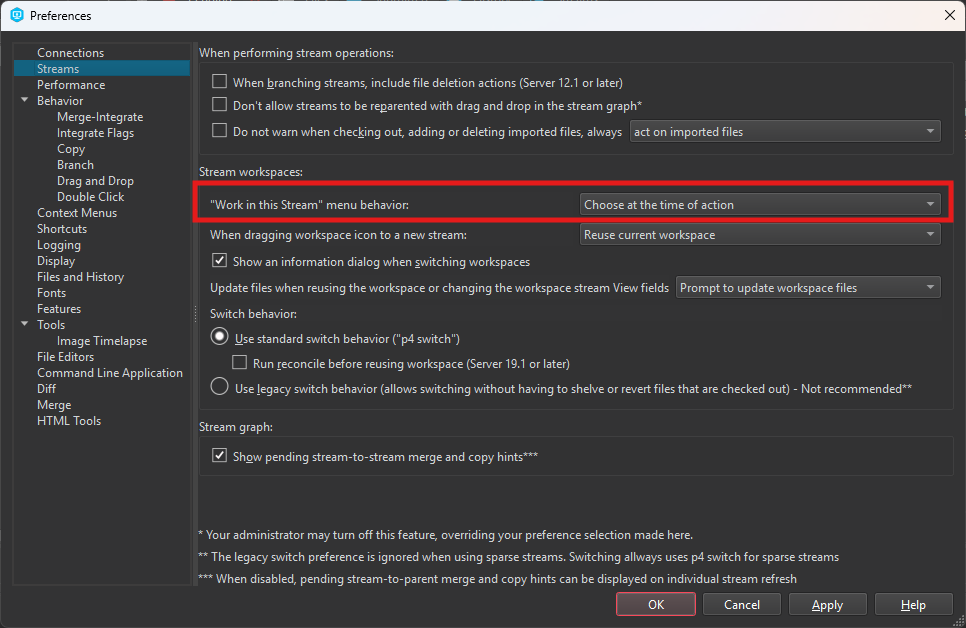
<p>1. Go to <code class="language-plaintext highlighter-rouge">Edit &gt; Preferences &gt; Streams</code> tab and make sure that <code class="language-plaintext highlighter-rouge">"Work in stream" menu behaviour</code> is set to <code class="language-plaintext highlighter-rouge">Choose at the time of action</code>.</p>

<p class="text-center"><img src="/assets/images/programming/changing-stream-for-a-perforce-workspace/1.png" alt="Figure 1: Work in stream menu behaviour" /></p>
<p class="text-center"><em>Figure 1: Work in stream menu behaviour setting</em></p>

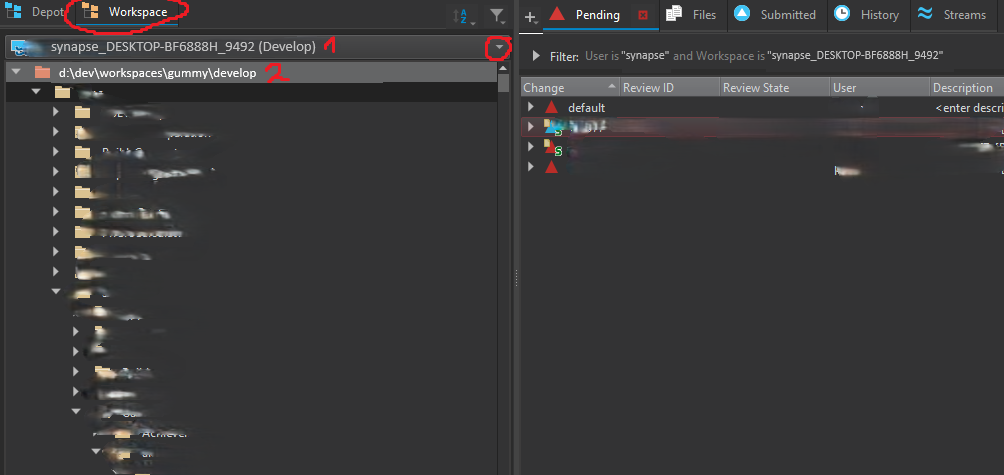
<p>2. In the left panel, select the Workspace tree.</p>

<p class="text-center"><img src="/assets/images/programming/changing-stream-for-a-perforce-workspace/2.png" alt="Figure 2: Workspace tree" /></p>
<p class="text-center"><em>Figure 2: Workspace tree</em></p>

<p>In the top dropdown menu, select the workspace whose stream you want to change.</p>

<p>The line marked with <code class="language-plaintext highlighter-rouge">1</code> shows the name of your workspace: <code class="language-plaintext highlighter-rouge">synapse_DESKTOP-BF6888H_9492</code> and in parentheses the stream it is currently tracking: <code class="language-plaintext highlighter-rouge">Develop</code>.</p>

<p>The line marked with <code class="language-plaintext highlighter-rouge">2</code> shows the folder on your disk associated with the workspace.</p>

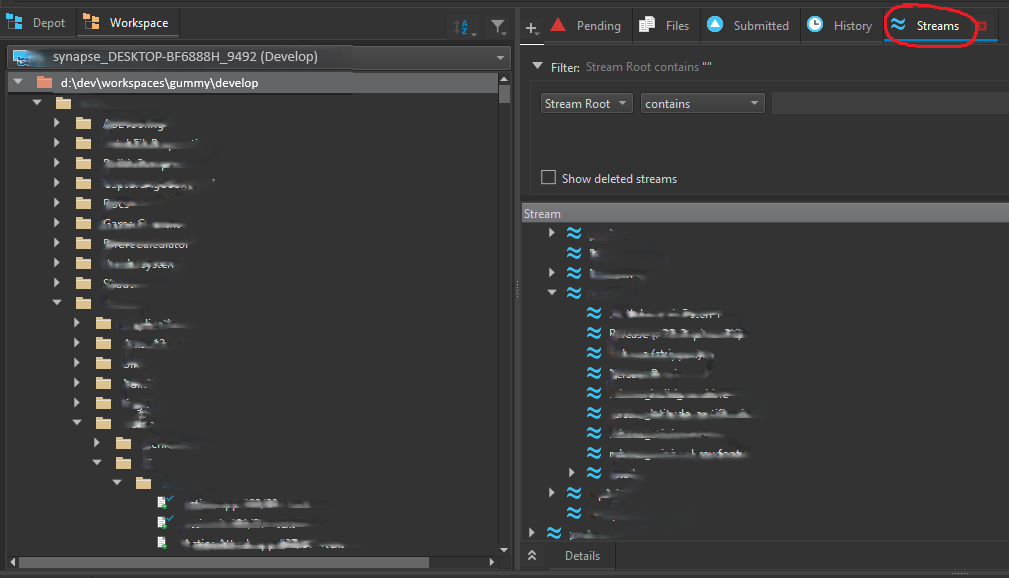
<p>3. In the right panel, select the Streams tab:</p>

<p class="text-center"><img src="/assets/images/programming/changing-stream-for-a-perforce-workspace/3.png" alt="Figure 3: Streams view" /></p>
<p class="text-center"><em>Figure 3: Streams view</em></p>

<p>You will see a tree structure of the streams available in the right panel.</p>

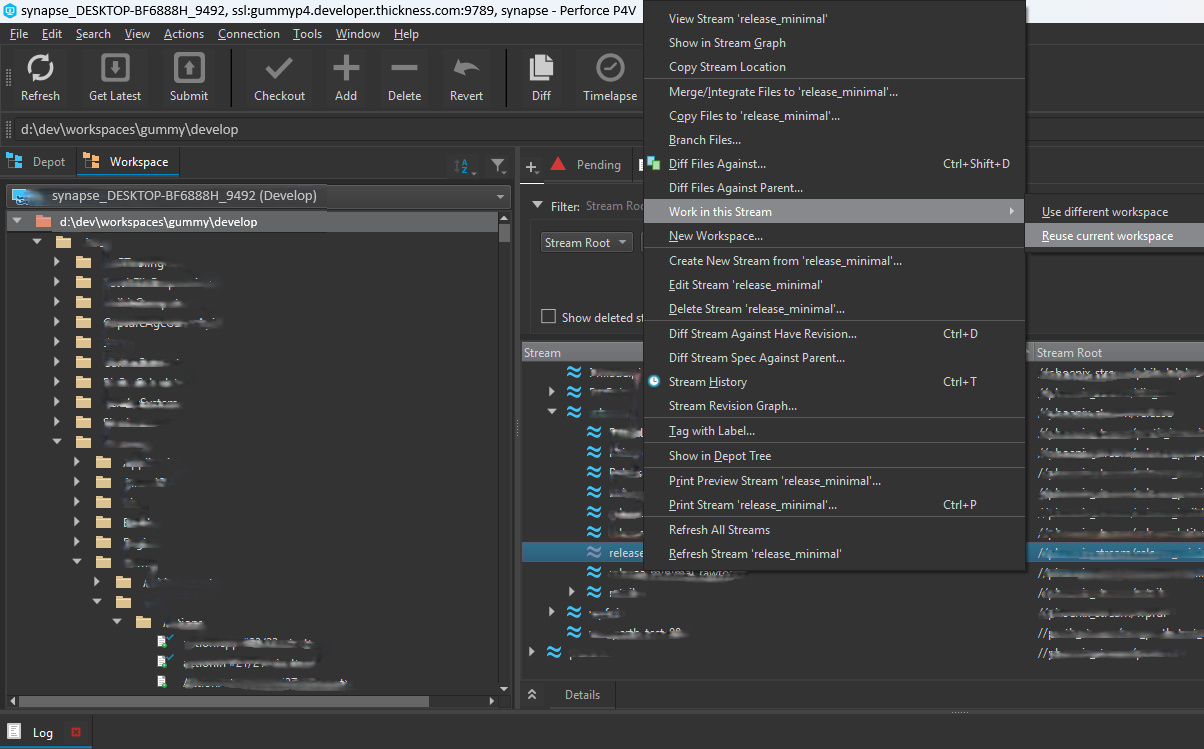
<p>4. Browse to the stream you want to switch to. Right click it and hover <code class="language-plaintext highlighter-rouge">Work in this Stream</code>.</p>

<p class="text-center"><img src="/assets/images/programming/changing-stream-for-a-perforce-workspace/4.png" alt="Figure 4: Switch stream" /></p>
<p class="text-center"><em>Figure 4: Switch stream</em></p>

<p>A submenu will open with two choices: <code class="language-plaintext highlighter-rouge">Use different workspace</code> and <code class="language-plaintext highlighter-rouge">Reuse current workspace</code>. We want to choose <code class="language-plaintext highlighter-rouge">Reuse current workspace</code> in this case. This is why we selected <code class="language-plaintext highlighter-rouge">Choose at the time of action</code> in the settings in step 1. If you cannot see <code class="language-plaintext highlighter-rouge">Reuse current workspace</code>, then go back to step 1 to enable it.</p>

<p>5. Click <code class="language-plaintext highlighter-rouge">Yes</code> in the pop-up window asking if you want to get the latest revision:</p>

<p class="text-center"><img src="/assets/images/programming/changing-stream-for-a-perforce-workspace/5.png" alt="Figure 5: Get latest revision pop-up" /></p>
<p class="text-center"><em>Figure 5: Get latest revision pop-up</em></p>

<p>Depending on the differences between your previous workspace (<code class="language-plaintext highlighter-rouge">Develop</code>) and the new stream (<code class="language-plaintext highlighter-rouge">release</code>), this operation can be quite fast—certainly faster than syncing down the whole stream from scratch—and you will use half the disk space (only one workspace instead of two). There are some caveats, however:</p>

<ol>
  <li>If the target stream is very different, Perforce might warn about conflicting files or deletions.</li>
  <li>Your folder on your disk will still be called <code class="language-plaintext highlighter-rouge">d:\dev\workspaces\gummy\develop</code>, but it now tracks the <code class="language-plaintext highlighter-rouge">release</code> stream. In practice it should not cause any problems, but it’s worth remembering. (Maybe you can plan your naming better next time. 🙂)</li>
</ol>]]></content><author><name>Péter</name></author><category term="Programming" /><category term="How-to" /><category term="Game Development" /><category term="Perforce" /><category term="Version Control" /><summary type="html"><![CDATA[Perforce is a popular version control system used in game development, because it handles non-code, binary assets better than Git.]]></summary></entry></feed>